.png)
We brought together 100+ finance leaders from across our portfolio for a hands-on workshop on using Claude Cowork in day-to-day finance operations.
The session focused on a practical question: how do you move from using AI as a chat assistant to using it to automate finance workflows like reading your files, running reconciliations, drafting reports, and saving outputs back to your folder?
Four speakers led the session. We had Naga Subramanya B B, VP of Finance at Sprinto, alongside the Elevation team:
- Pankaj Ghai, Director of Finance
- Harsh Agrawal, CTO in Residence
- Vartika Bansal, AI Operations Partner
This playbook is the companion resource to that session. It covers the six Claude Cowork for Finance use cases demonstrated during the workshop—with exact prompts, setup instructions, and and follow-up variations discussed.
Download our free prompt handbook to get started with Claude Cowork and try any of these workflows with your financial data.
What is Claude Cowork?
Claude Cowork is an AI-powered desktop agent from Anthropic. Connect it to a folder on your local system, point it to a task, and it executes the work end to end by reading your source files, processing them, and writing outputs back to the same folder.
Think of it as handing a USB drive to a capable intern.
The drive contains every essential file, like mutual fund statements, bank exports, payment gateway reports. The intern completes the work, saves the outputs back onto the same drive, and returns it back to you.
How is Cowork different from other AI tools
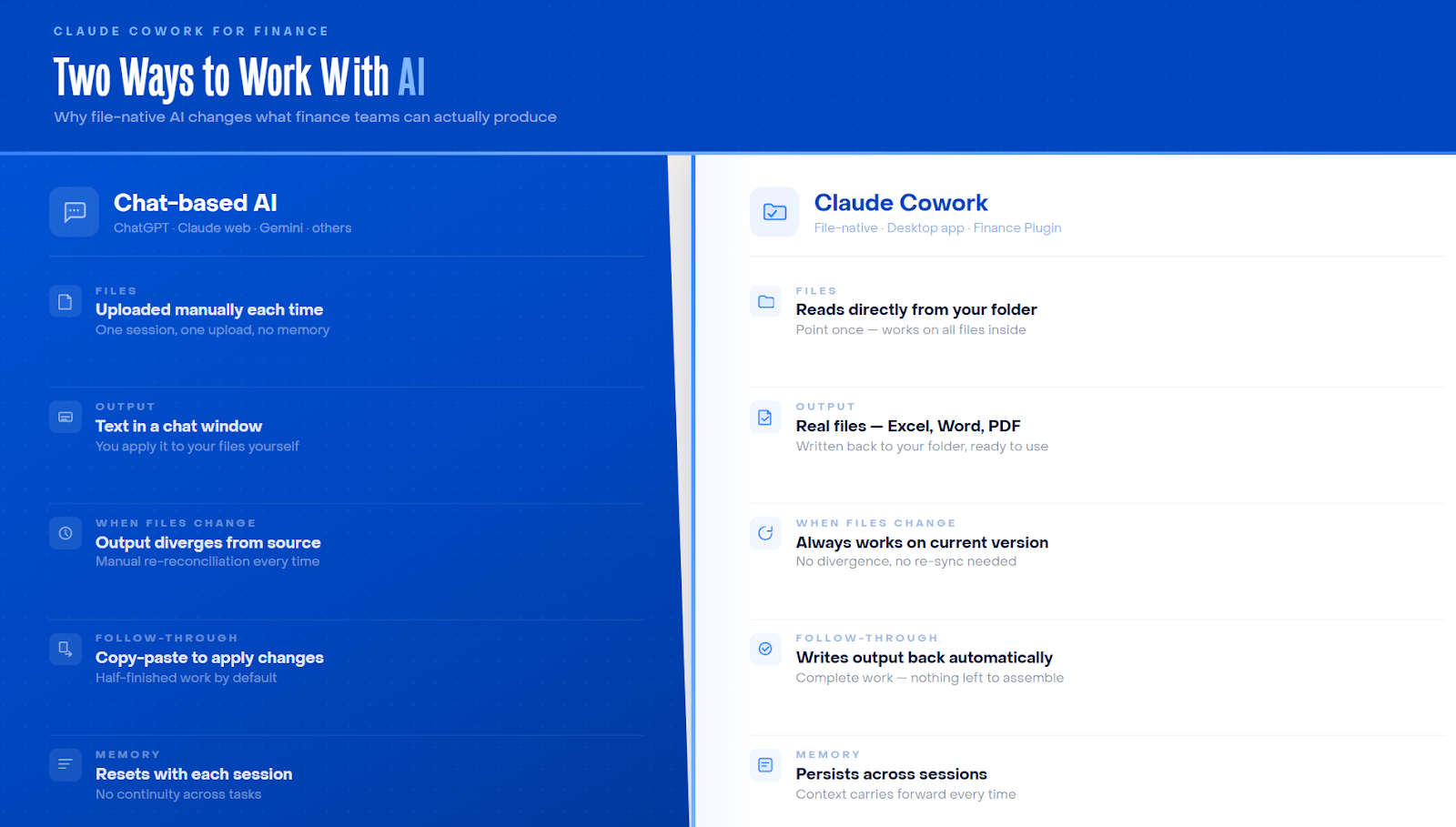
Chat-based tools, whether the Claude web app, ChatGPT, Gemini or similar LLM tools, operate through a conversation window.
You upload files, get responses as text, and manually apply those responses to your documents. Any time the underlying file changes, you have to manually reconcile what the AI produced against the version that actually exists.
Cowork avoids this cycle. It reads your source files directly, makes changes within them, and writes outputs back to the same folder you pointed it to.
The practical implications are significant:
- No need to re-upload files after they have been updated or modified during the session
- No manual copy-paste step between what Claude produces and the document your team actually uses
- No context loss when you close the application because the workspace persists across sessions making it ideal for longer or multi-stage tasks
- Final output is a ready-to-use, real file like an Excel workbook, a Word document, a PDF
What makes Cowork particularly powerful for finance teams is the Finance Plugin, a specialist extension that loads pre-built knowledge of accounting workflows, reconciliation structures, and reporting formats. Teams that install it start every task with that domain context already in place, without rebuilding it into each prompt.
The use cases and prompts in this guide assume this plugin is installed.
Why finance teams need Claude Cowork now
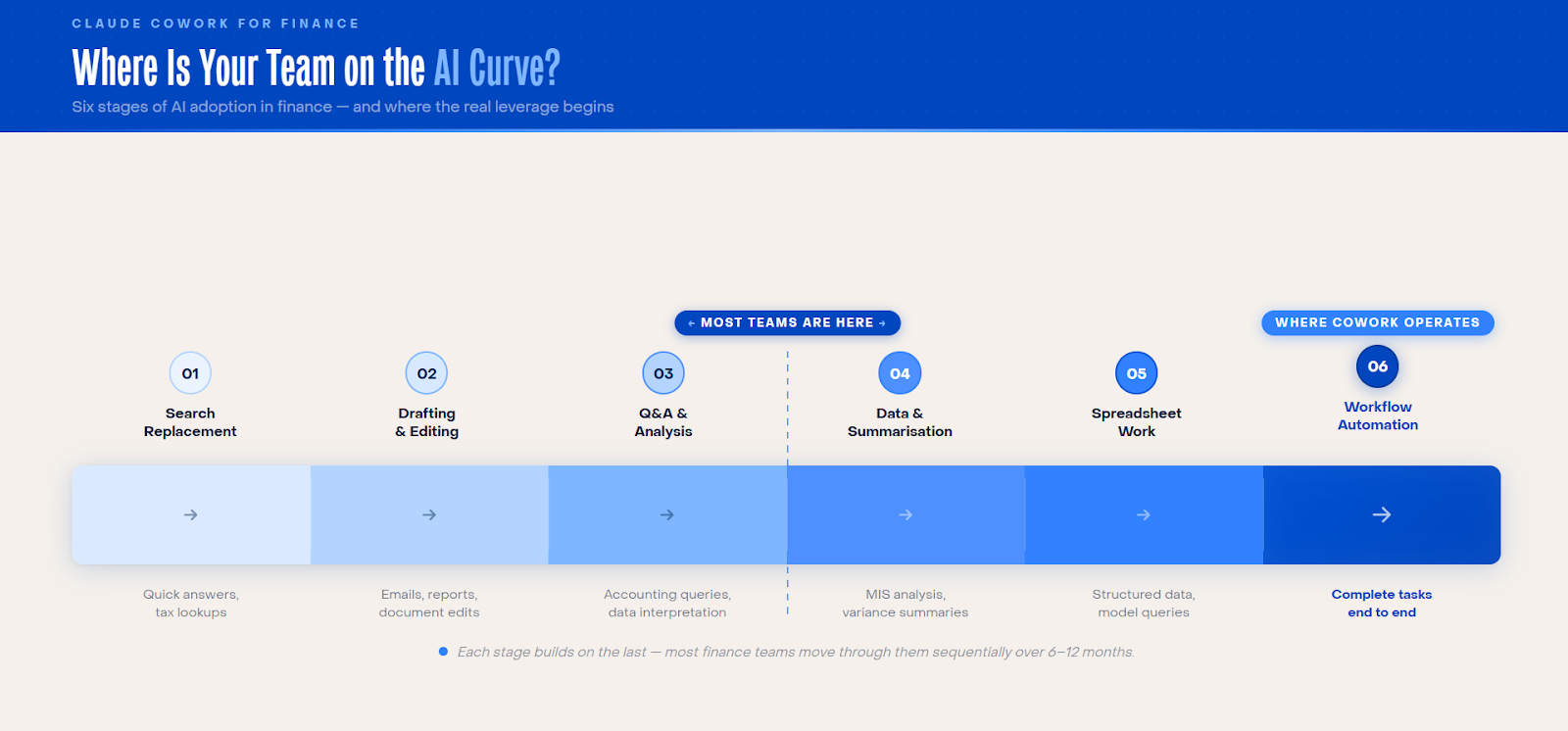
AI adoption in most finance functions tends to follow a recognisable pattern.
Teams start with AI as a search tool for accounting questions and tax rules. Then they move to drafting and editing like writing emails, summarizing reports, and cleaning documents. Finally, they get to analysis: interpreting data, flagging anomalies, explaining variances.
Beyond that is where most teams are currently stuck, working with spreadsheet data, querying structured files, building models. The ceiling most teams are trying to push through is full workflow automation, where AI is completing processes from start to finish.
Getting to full workflow automation requires treating Claude less like a search tool and more like a capable analyst you brief, review, and hold accountable.
Three things don’t change as you integrate Cowork into your financial workflows:
- You own the output: The fact that Claude produced a set of journal entries or a reconciliation report does not transfer accountability. The person who reviews and posts those entries is the person responsible for their accuracy.
- Context in, quality out: The precision of the result depends on the precision of the instruction. A prompt that specifies your chart of accounts, accounting standards, preferred output format, and the relevant date range will produce substantially useful results.
- Your standards do not move: Whether the applicable standard is Ind AS, IFRS, or US GAAP, whether you follow a specific month-end close checklist or a defined reporting format, none of that changes. You bring that expertise to every prompt, and you bring it to every review.
That said, several important things do change quite materially.
The primary output of your team goes from working on spreadsheets to creating/improvising prompts that are precise, well-scoped, and reusable across sessions.
Claude will occasionally present wrong numbers with complete confidence which will look correct. Catching them correctly requires the same professional skepticism that good finance work always demands.
What changes is where that skepticism is applied. Instead of applying it to the work of doing the task, you are applying it to the work of reviewing an output.
6 ways to use Claude Cowork for finance workflows
We break down six of the most common finance workflows where Cowork delivers a meaningful reduction in hands-on effort.
Each one follows the same structure: what the existing process looks like, how to set it up, the prompt that drives it, and where the workflow can go from there.
Use case 1. Consolidating mutual fund statements into journal entries
The existing process
Each month, you receive investment statements from different asset management companies in different formats. Some come as PDFs, others as Excel exports, each structured according to the AMC's own conventions.
Before you can post anything, you need to consolidate them into a single view, compute mark-to-market values, calculate cost basis, and translate it all into journal entries against your chart of accounts.
It’s rule-based, time-consuming work that tends to sit at the top of month-end bottlenecks. Since the steps are mechanical, errors in that process are rarely evident until something downstream doesn’t reconcile.
How to use Claude Cowork for consolidating mutual fund statements
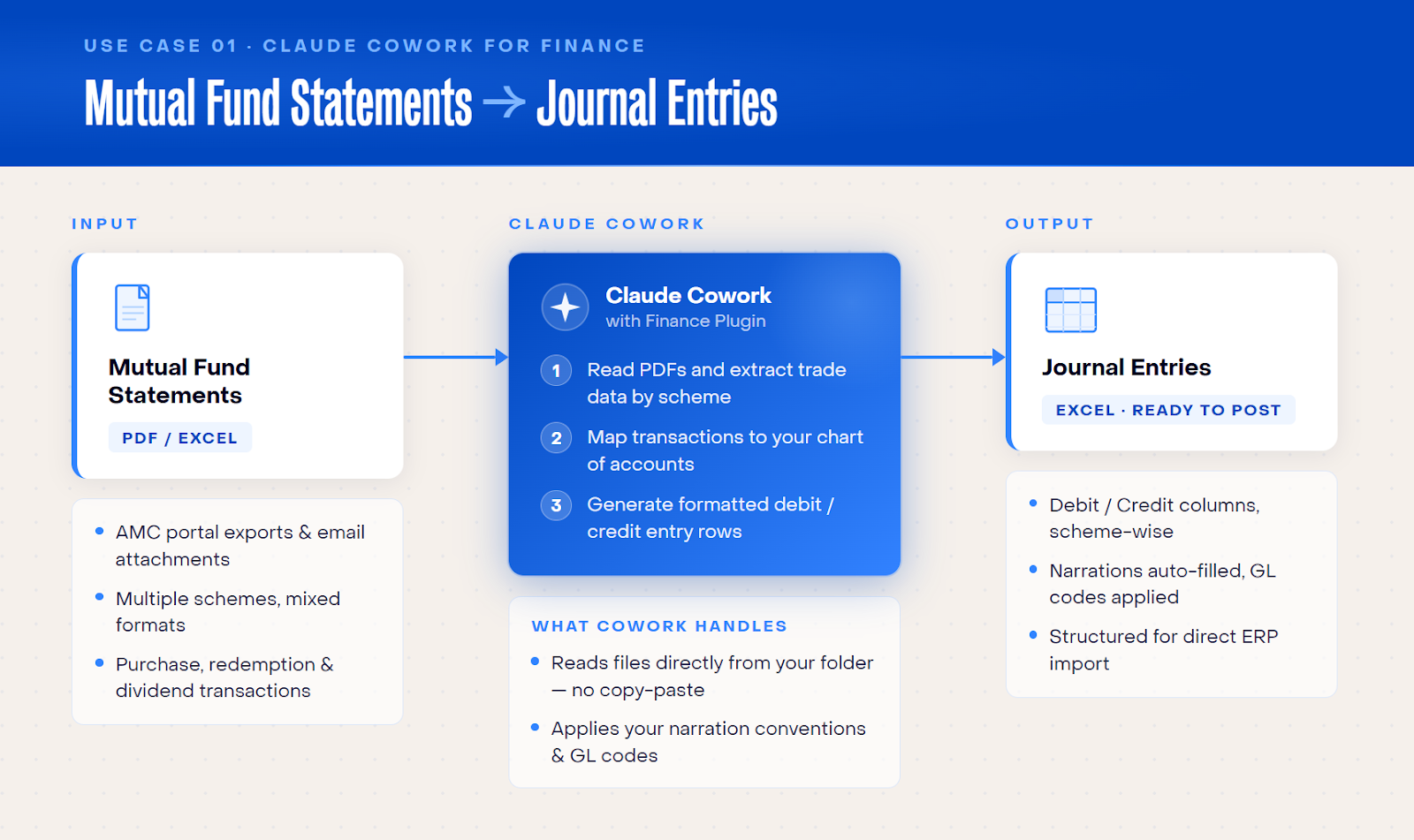
Create a folder on your laptop/device and add all your mutual fund statements here, as PDFs, Excel files, or both. You can also include a spreadsheet of your chart of accounts in the same folder.
Then open Claude Cowork, point it to that folder, and run the prompt below.
"I have mutual fund statements from different AMCs attached. Please consolidate all investments, prepare journal entries with debits and credits, compute mark-to-market for each fund, and provide a transaction summary with cost basis workings. Use our chart of accounts format."
Cowork will read every statement in the folder, consolidate the investments into a single view, and compute mark-to-market and cost basis for each fund.
Based on these steps, the tool will prepare journal entries with debits, credits, and narrations, all referenced against your chart of accounts. The output is written back as a file in the same folder, ready to review.
Here are some follow-up prompts to refine the output:
- Flag any funds where the MTM loss exceeds [X]% of cost basis and suggest provisioning entries.
- What's the weighted average yield across the portfolio based on cost vs current value? Annualise it.
- We have ₹20+ Cr sitting in liquid funds. What's the opportunity cost if overnight rates shift 25 bps?
- Would the accounting change if the account is as per US GAAP / IFRS / Indian Accounting Standards?
- Prepare a board note summarising the treasury position as of [DATE].
Once the routine accounting is handled, the questions your treasury team can ask become qualitatively different. The follow-up prompts above illustrate that. These questions inform treasury decisions, not just records.
Use case 2. Three-way eCommerce reconciliation
The existing process
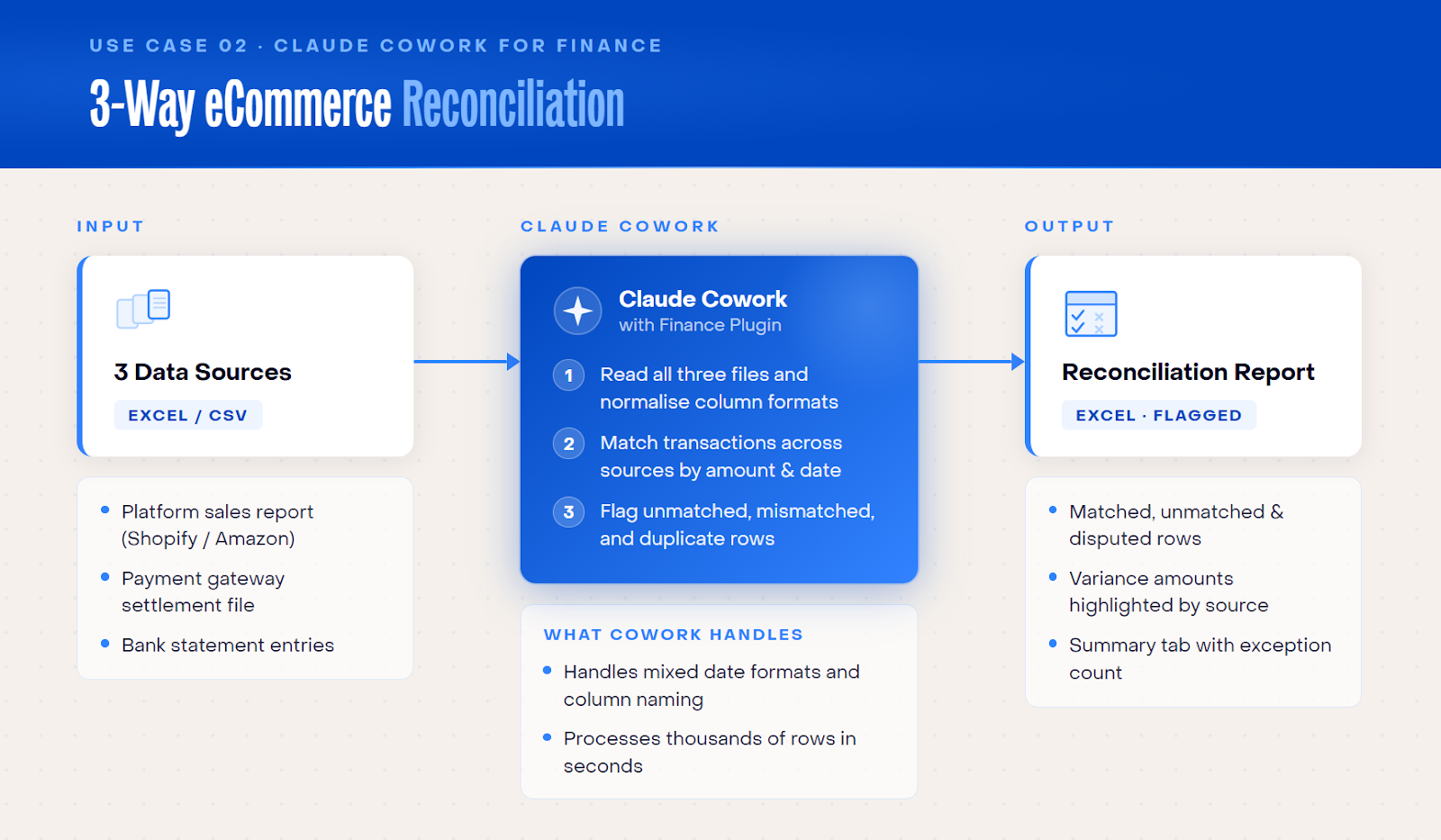
If your business processes payments through a payment gateway, three separate sources need to be reconciled every month:
- Your bank statement
- Your internal order book
- Payment gateway settlement report
Settlements net out PG fees before they hit your account. Split orders settle across multiple days, and refunds flow back through a different process. Reconciling all of this manually involves catching fee overcharges, missing settlements, refund gaps, and duplicates. It typically takes 3-5 days of focused effort per month.
How to reconcile three data sources with Claude Cowork
Create a folder containing your payment gateway settlement report, your bank statement, and your order book export for the relevant period.
Point Cowork to that folder and run the prompt below. The output will be a colour-coded exception report saved back to the same folder, with a summary of the total exceptions found and their financial impact.
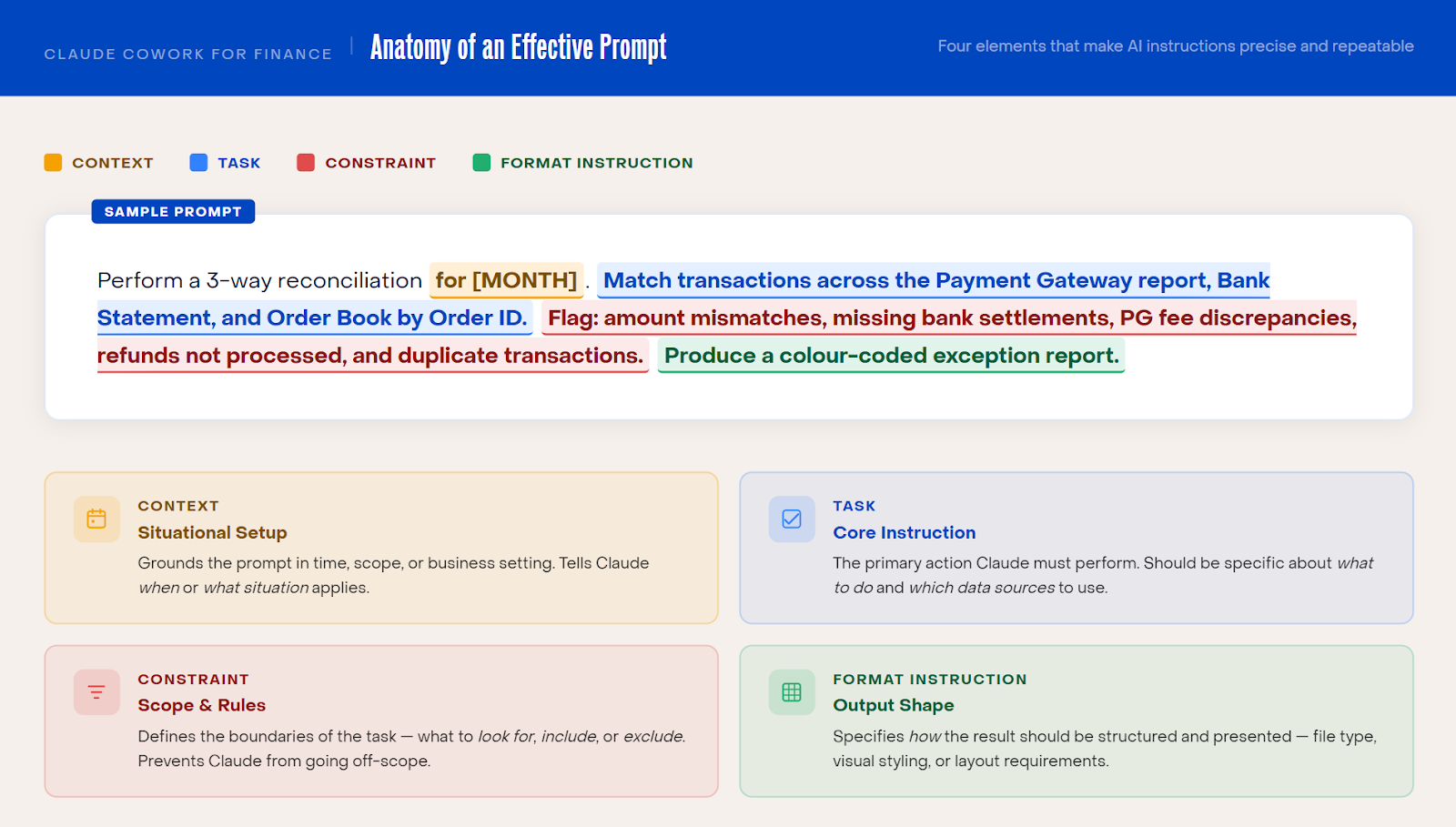
"Perform a 3-way reconciliation for [MONTH]. Match transactions across the Payment Gateway report, Bank Statement, and Order Book by Order ID. Flag: amount mismatches, missing bank settlements, PG fee discrepancies, refunds not processed, and duplicate transactions. Produce a colour-coded exception report."
For high transaction volumes, ask Claude to process the data in batches and produce a consolidated report. Specify your contracted PG fee rate in the prompt (“our agreed rate is 2%, flag any transaction charged above this”) to make the exception detection more accurate.
Here are some follow-up prompts to refine the output:
- For each exception, explain the root cause and recommend a specific action (e.g., raise dispute with PG, reverse refund, investigate duplicate).
- Calculate the total revenue leakage from all exceptions. What is the net financial impact?
- Draft an email to [PG name] support about the fee overcharge on [Order ID] and the missing settlement for [Order ID]. Include all transaction details.
Use case 3: MIS Flux analysis
The existing process
Your monthly MIS tells leadership where the business stands. But what they need to understand is what changed, and why.
Most finance teams write variance commentary that meaningfully explains movements across GL codes, vendors, and business segments under time pressure at the end of every close. The result is often a document that describes the numbers without explaining them clearly.
How to analyze monthly MIS with Claude Cowork
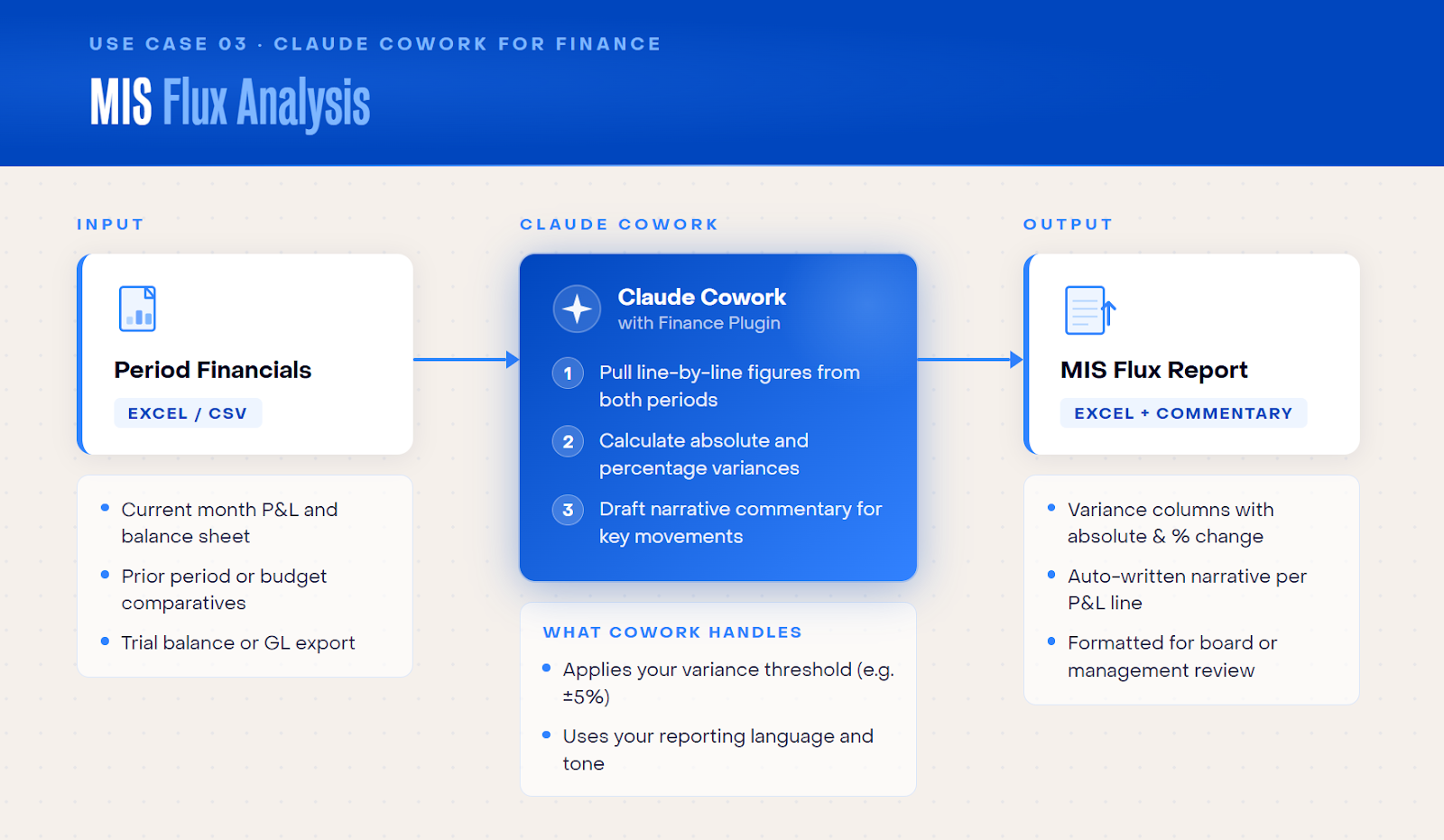
Prepare two files that most finance teams already have as ERP downloads: a month-on-month P&L and an expense summary by vendor. In the same folder, add any other relevant context like headcount data, budget assumptions, or a brief note on any business events during the period.
Point Cowork to the folder and run the prompt below.
"Analyse this month's P&L vs prior month and budget. Break down variances by GL code and by vendor. Identify the top 5 positive and negative deltas. Write an MIS narrative for the CFO explaining what changed and whether any items need attention."
The richer the context you provide, with details like vendor-level spend, headcount by department, any off-cycle expenses, the more specific the narrative will be. Include all relevant sheets beyond revenue and opex.
Here are some follow-up prompts to refine the output:
- Which KPIs are deteriorating and what actions would you recommend?
- Based on this analysis, prepare a board-ready executive summary: 3 things going well (with specific numbers), 3 things that need attention (with recommended actions), one-line outlook for next month. Keep it under 300 words. The audience is a VC board member who has 5 minutes to read this.
- Draft an email to the relevant stakeholders explaining the variances and the actions we are taking.
Use case 4: Automated debtors ageing email drafts
The existing process
When you have 20 or more overdue invoices to follow up on, writing individual emails for each customer is a task that rarely gets done well.
A generic chase email goes to every customer regardless of how long the invoice has been overdue, who the customer is, or what the relationship looks like. This leads to either a one-size-fits-all message that lacks urgency where urgency is needed, or a manual drafting process that takes more time than the recovery effort warrants.
How to automate debtors ageing emails with Claude Cowork
Before running this workflow, connect your Gmail account through Claude's connectors. This allows Cowork to save drafts directly to your inbox.
In your Claude Cowork chatbox, click the + icon and go to Connectors.
Here, click Manage Connectors.
Then, click the + icon again and select Browse Connectors.
You’ll find the option to connect Gmail here.
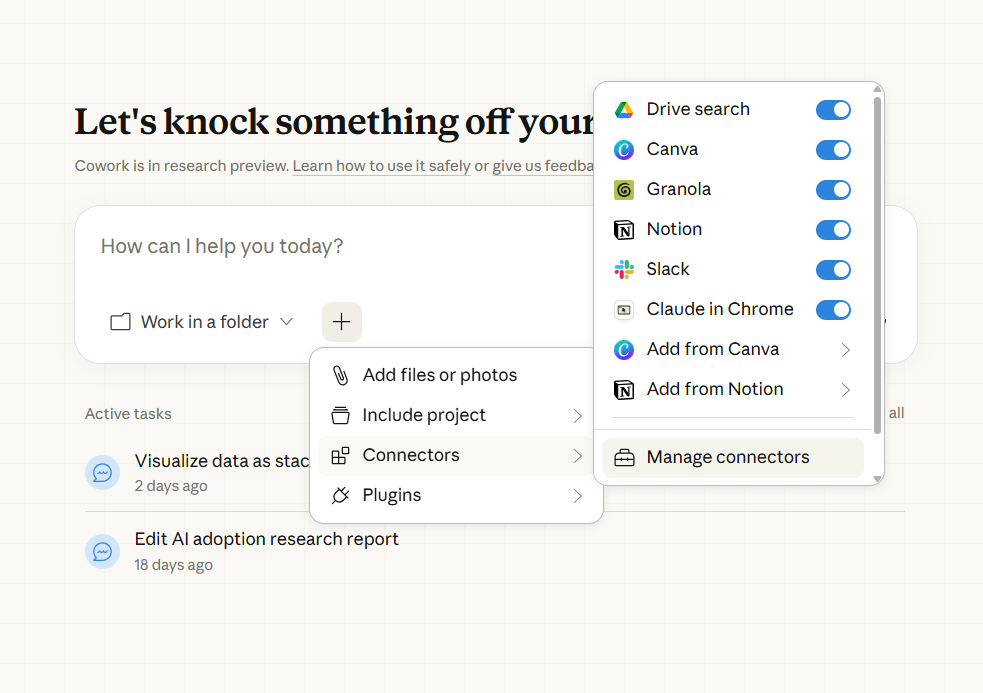
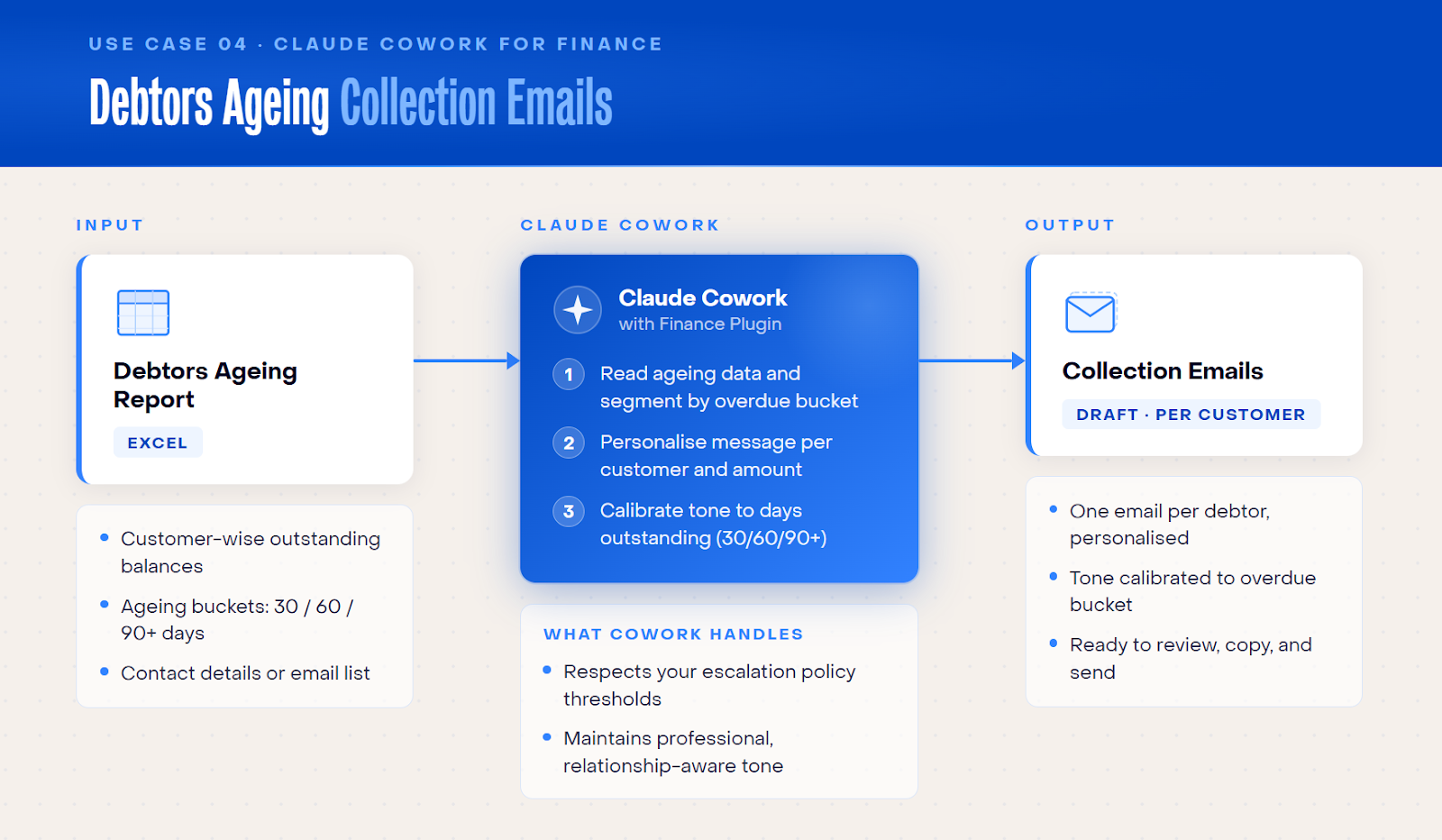
Once this connector is set up, prepare your debtors ageing file with customer names, email IDs, invoice numbers, amounts, and ageing bucket for each outstanding invoice. Save it in a local folder, and point Cowork to the folder and run the prompt below.
After it runs, go to your Gmail drafts folder and one email per customer will be waiting there for your review.
"Read the debtors ageing file [filename]. For each overdue customer, draft a payment follow-up email. Use a friendly tone for 1–30 days overdue, firm for 31–60 days, escalation warning for 61–90 days, and final notice for 90+ days. Include invoice numbers, amounts, and due dates in each email. Save all emails as Gmail drafts."
Here are some follow-up prompts to refine the output:
- For the 90+ days customers, add a line about potential legal action and CC the [legal team/CFO email].
- Consolidate all overdue amounts by customer — some customers may have multiple overdue invoices. Send one email per customer with all their outstanding invoices listed.
- Add a payment link [URL] to each email and mention the option of paying by NEFT/RTGS with our bank details.
Important: Always review drafts before sending, particularly the 90+ day notices. You can also embed customer-specific instructions in the ageing file itself in a column indicating preferred tone or escalation protocol, and ask Claude to follow those per row.
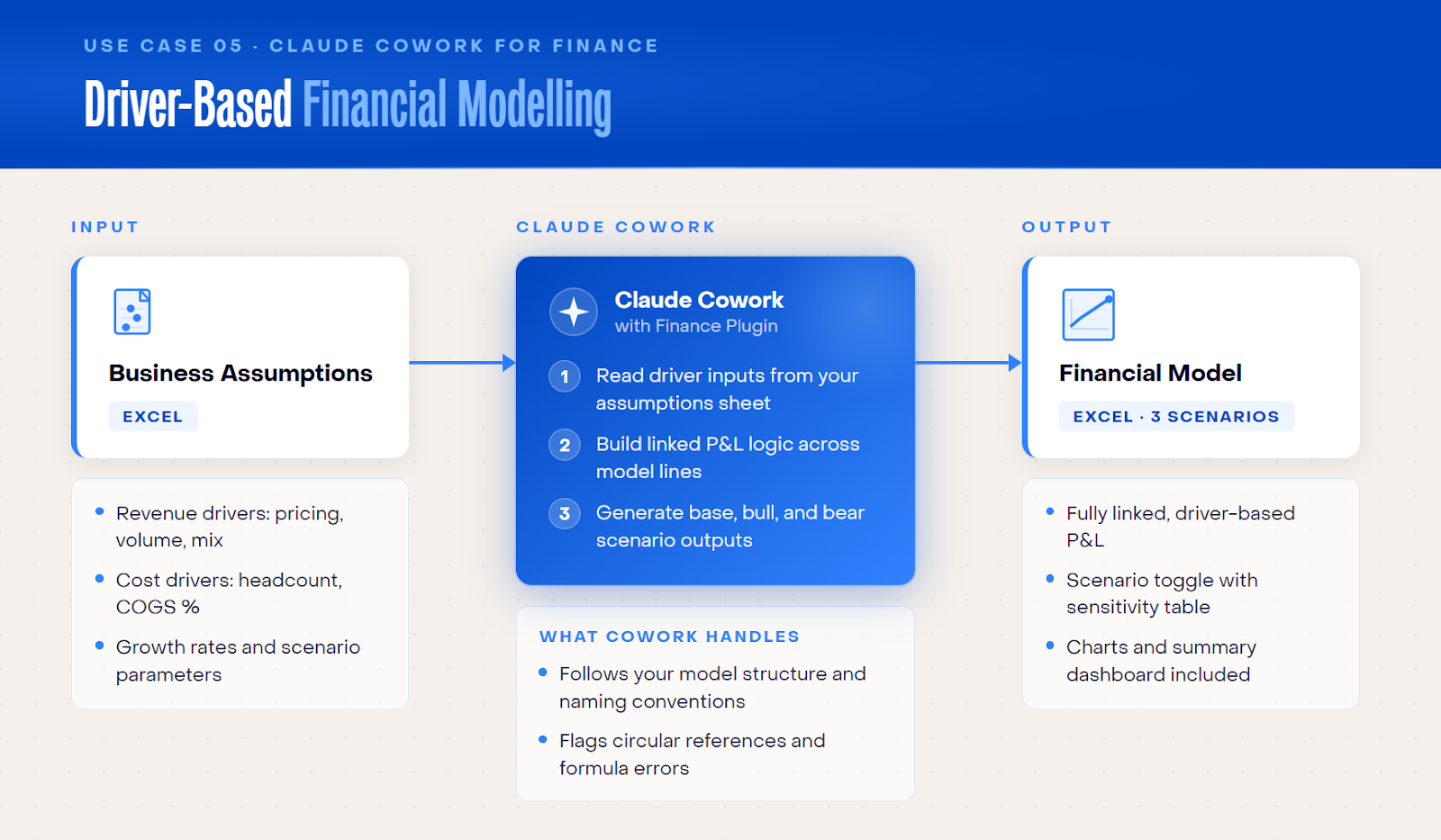
Use case 5: Driver-based financial modelling
The existing process
Building a financial model—whether for annual operating planning, a board review, or a business case—is typically a four-to-six week exercise.
The model itself often carries formula errors that are difficult to catch until a scenario produces a number that does not make intuitive sense. More fundamentally, the analysis of what happened last month and the planning for the next twelve months exist in separate documents, built by different people at different times.
The gap between backward-looking analysis and forward-looking planning can take up weeks.
How to set up financial modeling with Claude Cowork
This use case works particularly well as a continuation of the MIS flux analysis above.
Once Cowork has analysed your P&L, you can ask it to build the financial model using the same data, without switching files or re-establishing context.
Alternatively, upload your MIS file directly. For this use case, switch to the Opus model. Opus is Claude’s most advanced model. The decomposition of drivers and the construction of a linked assumptions sheet benefit from deeper reasoning, and the additional compute time is worth it.
Use this prompt to get Cowork into action:
"I want to go from backward-looking analysis to forward-looking planning. Using the same data, build me a lever-based financial model: 1. Decompose each major revenue and cost line into its underlying driver (e.g., Subscription Revenue = Customers × ARPU; AWS Hosting = Customers × cost per customer; Engineering Salaries = Headcount × average CTC). 2. Create an Assumptions sheet with all the levers — derive each from the [MONTH] actuals and show your working. 3. Build a 12-month projected P&L where every line is driven by the levers. Include Revenue, COGS, Gross Profit, OpEx by department, EBITDA, and PBT with margins. 4. Tell me: which 3 levers have the highest impact on EBITDA? Output this as an Excel file I can use going forward."
Here are some follow-up prompts to refine the output:
- What are the most sensitive assumptions? Show EBITDA impact if revenue is [X]% lower than plan.
- The board wants to see what happens if net customer adds slow from 15/month to 8/month, but we keep hiring at the same pace. Show me: what happens to exit ARR and EBITDA margin? At what customer growth rate does EBITDA break even? If growth slows, what cost levers should I pull first to protect margins?
Use case 6: GST / TDS Reconciliation
The existing process
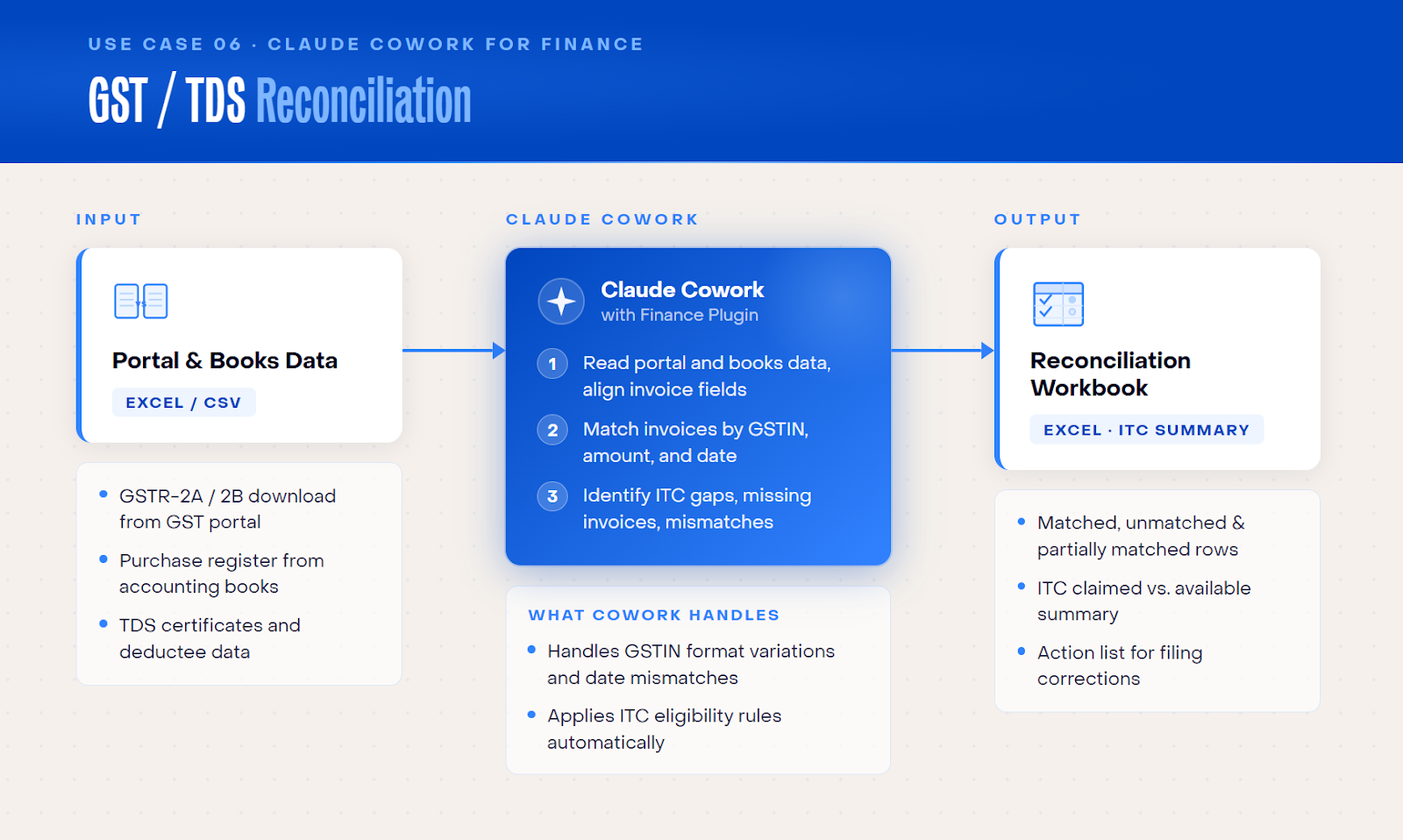
Reconciling your GSTR-2A against your purchase register is one of the most error-prone processes in routine compliance work. Supplier GSTINs get entered inconsistently, invoice number formats differ between systems, amounts vary due to rounding or timing, and duplicates in the GSTR-2A go undetected until an ITC claim is challenged.
Finance teams typically spend several days on this process each month, and the exceptions they miss directly translate into ITC at risk.
How to reconcile GST/TDS data with Claude Cowork
Create a folder with two files: your GSTR-2A export and your purchase register or ledger report for the same period.
Point Cowork to that folder and run the prompt below. The output will be a colour-coded exception report with a summary dashboard showing total matched invoices, mismatches by category, and the aggregate ITC at risk, along with a recommended action for each exception.
"In the folder, there are 2 files — GSTR-2A.xlsx and Ledger Report.xls. Perform a GSTR-2A vs Purchase Register reconciliation for [MONTH]. Match invoices across both sheets using Supplier GSTIN and Invoice Number as primary keys. For each invoice, flag: (1) amount mismatches with the exact difference, (2) GSTIN discrepancies, (3) invoice number format differences, (4) date mismatches, (5) GST rate mismatches, (6) duplicates in GSTR-2A, (7) invoices present in GSTR-2A but missing from Purchase Register, and (8) invoices in Purchase Register but missing from GSTR-2A. Produce a colour-coded Exception Report with a summary dashboard showing: total matched, total mismatched by category, ITC at risk (₹), and recommended actions."
Here are some follow-up prompts to refine the output:
- For each exception that requires supplier action, draft a follow-up email requesting a corrected invoice or credit note.
- Which suppliers have recurring mismatches across the last three months? Summarise the pattern and recommend whether we should flag them for vendor review.
How to prompt Claude Cowork effectively
You get out what you put in. Cowork is only as good as your prompts.
Every effective prompt contains four building blocks:
- Context grounds the prompt in time, scope, or business setting.
- Task is the core instruction: what to do and which data sources to use.
- Constraint defines the rules and scope like what to flag, include, or exclude.
- Format instruction specifies the output shape like the file type, layout, or structure you want back.
We break down the prompt from Use Case #2 to show each element in action.
Now, let’s look at a few fundamentals for drafting high-quality prompts for Claude Cowork.
Be specific about context
Mention your role, your company type, the accounting standard you use (Ind AS, IFRS, or US GAAP), the currency, and the output format you want.
A prompt that says “use our chart of accounts format” is meaningfully better than one that does not. It ties the output to your actual structure rather than a generic one.
Attach the right files
Cowork reads what is in the folder you point it to. If your prompt refers to a chart of accounts, the chart of accounts file should be in the folder. If it refers to prior-month actuals, include that file.
Missing context produces generic output while complete, in-depth context delivers output you can actually use.
Iterate actively, don’t go with the first pass
Remember that the first output is your starting point, not your final answer.
A reconciliation prompt might produce split settlements as exceptions on the first run. A quick refinement will sharpen the next output considerably. Two or three rounds of iteration to reach a reliable, reusable prompt is normal.
Choose the right model
Use Opus for new or complex tasks where you are still defining what the output should look like. This model reasons more carefully and asks better clarifying questions.
Once a prompt is working and you are running it repeatedly, switch to Sonnet, which is faster and more cost-efficient.
Haiku is sufficient for simple, well-defined tasks like rewriting an email, reformatting a short document.
How to get started with Claude Cowork
Step 1: Access and setup
Download the Claude desktop app from claude.ai. It is available on both Mac and Windows. Activate Cowork, install the Finance Plugin, and connect any relevant integrations (Gmail, Google Drive) through Claude's connector settings.
Step 2: Start with something contained
Pick a single, well-defined task with clear inputs and measurable outputs such as recent journal entries, an AP ageing batch, or a variance note. Starting small helps you learn how Cowork works and what to check during review.
Step 3: Iterate on your prompts
If the first output is not quite right, do not patch it manually. Refine the prompt instead and run it again from scratch. A better prompt that produces a reliable output is more valuable than a one-time workaround, because it can be reused and shared. Keep a record of prompts that work well.
Step 4: Build recurring workflows
Once a prompt is stable, save it as a scheduled task so it runs automatically at the frequency you set—monthly for reconciliations, weekly for AP ageing, as needed for MIS packs.
This is also the point at which Cowork moves from individual productivity to team-level process: a shared prompt library that anyone on the finance team can use.
FAQs
- Is my financial data secure?
When you run a task, Cowork reads your files locally and transmits them to Anthropic's servers for processing. The output is then written back to your machine. Anthropic does not use data from paid plans for model training.
For sensitive files, it is advisable to work with copies rather than live source data. This is good practice regardless, since Cowork has write access to any folder you grant it.
- Can my whole finance team use it?
Yes, Claude offers Team plans. When you subscribe to a Team plan, each person on the team uses their own Cowork instance on their own device. Teams can share files through a common folder and share prompts through a shared document, but two people cannot operate the same Cowork session simultaneously.
Enterprise licensing is available for teams that want to deploy it across multiple users.
- Can we automate recurring tasks?
Yes. Yes. Cowork's scheduled tasks feature lets you run prompts at set intervals, daily, weekly, or monthly. Once a reconciliation or MIS prompt works reliably, automating it eliminates the manual trigger step entirely.
- How reliable are the numbers?
Cowork is highly reliable for well-defined, single-step tasks. Errors tend to emerge in complex, multi-step prompts that require multiple inference operations in one go.
For complex tasks, chain sequential prompts where each output feeds into the next input. This approach makes it easier to pinpoint errors and fix them without rerunning the entire workflow.